Open & the five sections
Why this matters: Pricing Intelligence is gated — only purchasing+ roles can reach it. Once inside, five sections cover everything from live product prices to scraper health. Knowing where each section lives saves you time every time you open the tool.
Getting access
Pricing Intelligence sits behind a role gate. You reach the dashboard through two steps:
- Go to /pricing/. If you see a "purchasing+" message instead of a button, your role is below the required level — ask an admin to upgrade it.
- Click Open Pricing Intelligence on the landing page. The dashboard at
/pricing-app/opens in the same tab.
The left navigation — five sections
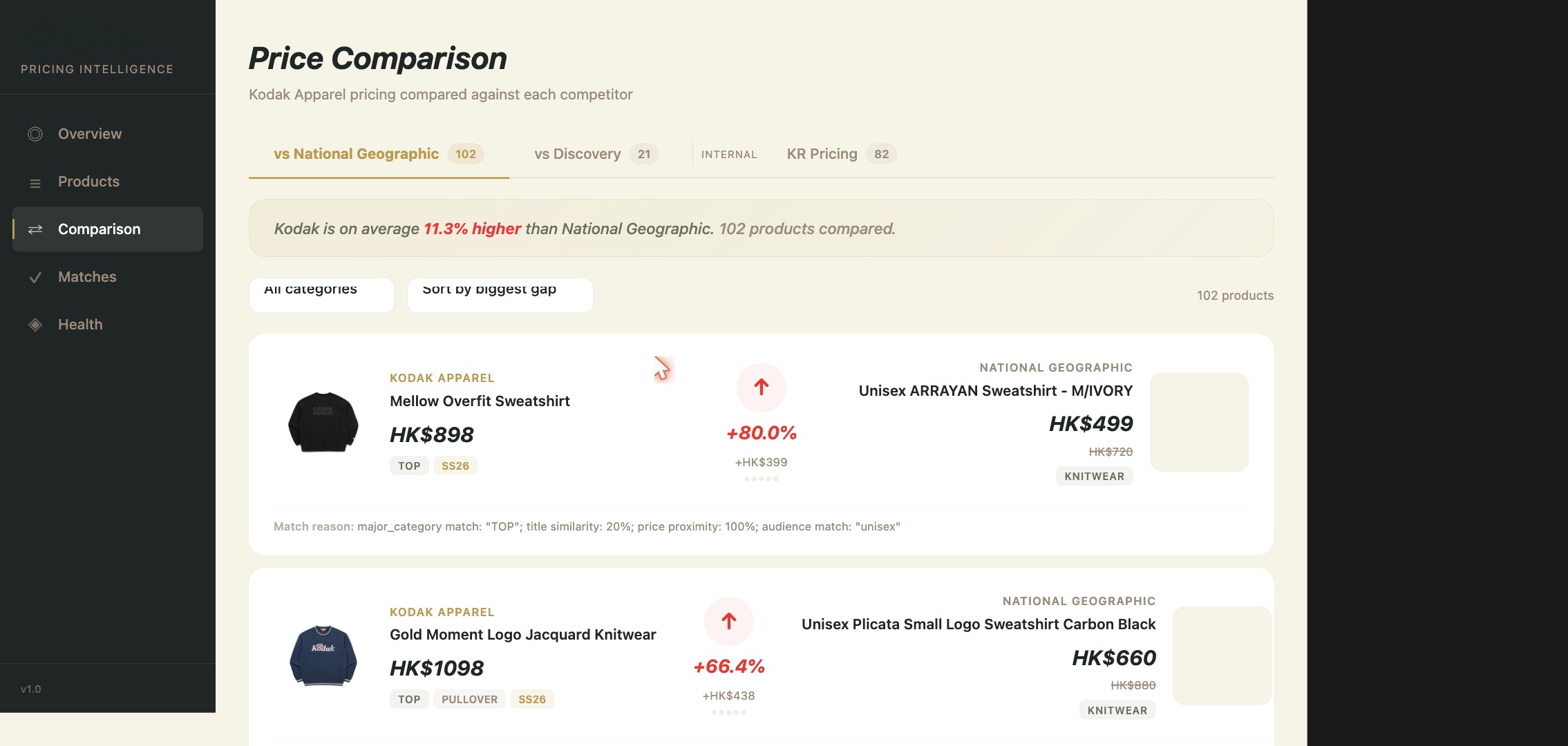
Every section of the tool lives in the left sidebar. Here is what each one does:
- ◎ Overview — a summary view. Use this as your daily entry point to see headline price positioning at a glance.
- ☰ Products — the full catalogue of Kodak Apparel products being tracked. Each row shows the current internal price.
- ⇄ Comparison — the core working screen. See Kodak prices lined up against competitor prices and the gap between them. This is where most analysis happens.
- ✓ Matches — the mapping layer. Each Kodak product is manually matched to the specific competitor product it is compared against. A wrong match makes the Comparison numbers meaningless.
- ◈ Health — scraper status. Shows whether each competitor price feed ran successfully and how fresh the data is. Check here before acting on any unusual numbers.
What the tool does not do
Pricing Intelligence is read-and-analyse only. It shows you pricing gaps and lets you make recommendations — it does not push any price changes to Shopify. Any adjustments must be applied manually in the Shopify admin.
開啟與五大分頁
為何重要: Pricing Intelligence 設有角色限制 —— 只有 purchasing+ 或以上角色才能進入。工具內共有五個分頁,涵蓋即時產品售價至爬蟲健康狀態。熟悉各分頁位置,每次使用都能節省時間。
取得使用權限
Pricing Intelligence 設有角色限制。你需要完成兩個步驟才能進入:
- 前往 /pricing/。若頁面顯示「 purchasing+ 」提示而非按鈕,表示你的角色未達要求 —— 請聯絡管理員提升角色。
- 在登陸頁面點擊 Open Pricing Intelligence,系統會在同一分頁開啟
/pricing-app/。
左側導航列 —— 五個分頁
工具的所有功能均在左側側邊欄。以下是各分頁的用途:
- ◎ Overview (總覽) —— 摘要視圖。建議每天以此作為入口,快速掌握整體定價狀況。
- ☰ Products (產品) —— 正在追蹤的 Kodak Apparel 完整產品目錄,每行顯示目前的內部售價。
- ⇄ Comparison (比較) —— 核心工作頁面,並排顯示 Kodak 與競爭對手的售價及差距。大部分分析工作在此進行。
- ✓ Matches (配對) —— 配對管理層。每件 Kodak 產品均手動對應一件競爭對手產品。若配對錯誤,比較數據便失去意義。
- ◈ Health (健康狀態) —— 爬蟲狀態。顯示各競爭對手價格爬蟲是否成功執行及數據的新鮮程度。出現異常數字時,應先到此頁檢查。
工具不能做的事
Pricing Intelligence 是只供閱讀和分析的工具。它顯示定價差距,讓你提出調整建議 —— 但不會直接將任何價格變更推送至 Shopify 。所有調整必須在 Shopify 後台手動完成。