Open & orient
What SocialPlan is for
SocialPlan lets you plan posts brand by brand, attach assets from Google Drive, route posts through an approval flow, and schedule them. Everything is campaign-based: every post belongs to a campaign, and every campaign belongs to one brand.
Opening the tool
- From the intranet homepage, click the SocialPlan card — or go directly to /social-plan/.
- The page title reads Social Plan — NNI Intranet. If you see a login prompt instead, make sure you are signed in with your
@newnationhk.comaccount. - The default view is 我的貼文 My posts — posts where you are the author or have been mentioned.
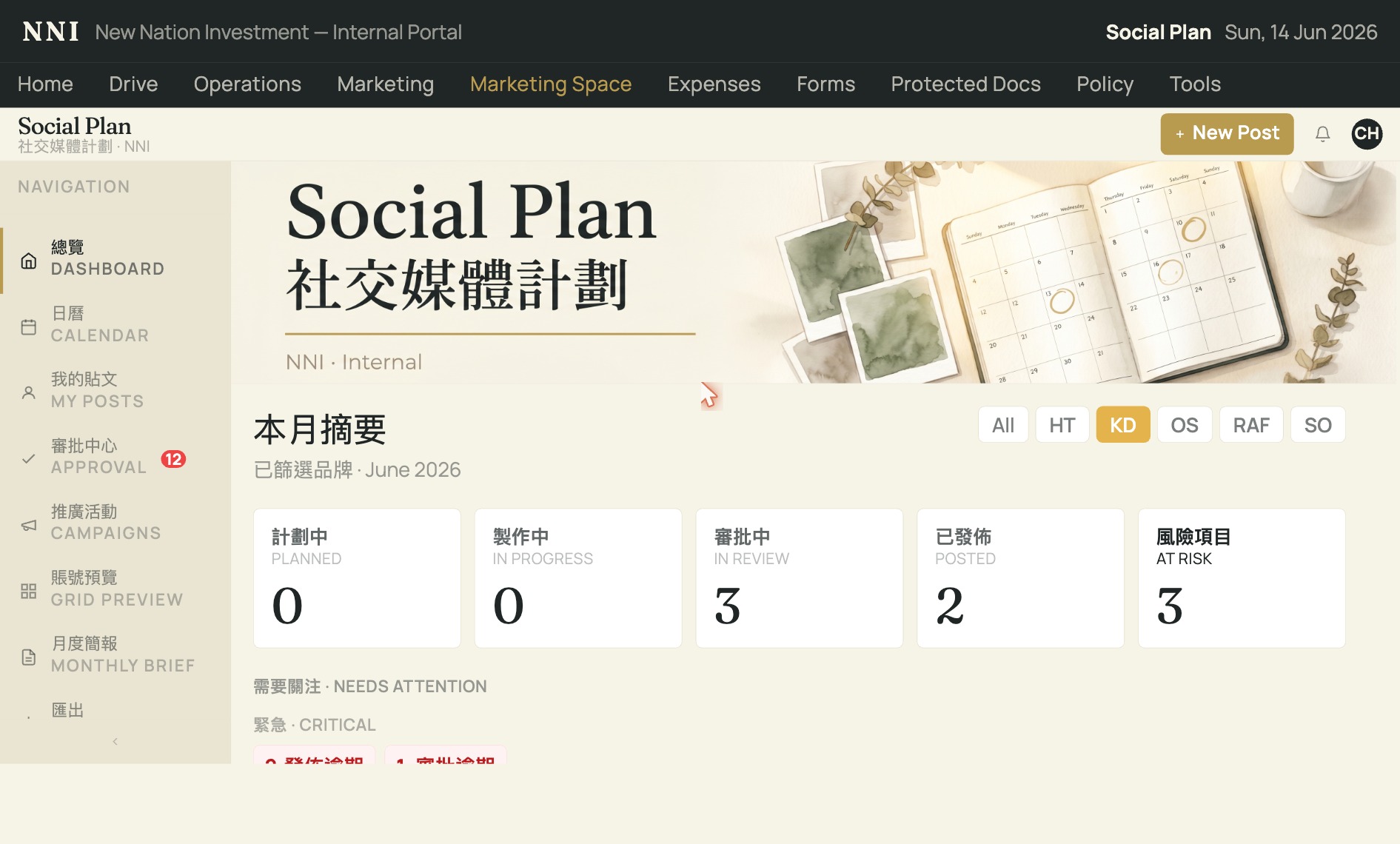
The brand switcher
The brand switcher at the top of the page filters everything in view. Click a brand code (HT, KD, RAF, SO, OS) to see only that brand's campaigns and posts. Switch brands before creating anything — a post created under the wrong brand cannot be moved.
Content pillars
Each post is tagged with a content pillar — a category such as Product, Lifestyle, or Campaign. Pillars keep the content mix balanced. You'll choose one when creating a post. The available pillars depend on the brand selected.
The week view
The week view shows posts laid out by scheduled date. Use it to spot gaps or overcrowding before you commit to a schedule. Key status labels you'll see:
- This week — posts falling in the current calendar week.
- Ready to post — approved posts whose scheduled time has arrived or passed; these can be published.
- Awaiting action — posts that need something from you (approval request, missing asset, etc.).
- Approval overdue — an approval was requested and the deadline has passed without a response. Chase the approver before the scheduled post time.
開啟與導覽
SocialPlan 的用途
SocialPlan 讓你按品牌規劃貼文、從 Google Drive 連結素材、把貼文送交審批,並安排排程。整個系統以 Campaign 為單位:每篇貼文屬於一個 Campaign ,每個 Campaign 屬於一個品牌。
開啟工具
- 在 Intranet 主頁按下 SocialPlan 卡片,或直接前往 /social-plan/。
- 頁面標題顯示 Social Plan — NNI Intranet。若出現登入畫面,請確認你已用
@newnationhk.com帳戶登入。 - 預設畫面是 我的貼文 My posts —— 即你是作者或被提及的貼文。
品牌切換器
頁面頂部的品牌切換器可以篩選所有顯示內容。按下品牌代碼( HT 、 KD 、 RAF 、 SO 、 OS )便只顯示該品牌的 Campaign 及貼文。建立任何內容前,先切換到正確品牌 —— 貼文一旦建立,無法移動到其他品牌。
內容支柱
每篇貼文都會標記一個內容支柱( Content Pillar ),例如產品、生活風格或 Campaign 。支柱有助保持內容結構平衡。建立貼文時你需要選擇一個,可選的支柱視乎當前品牌而定。
週視圖
週視圖按排程日期顯示貼文,讓你在確認排程前察覺日程空缺或過密的問題。常見狀態標籤如下:
- This week (本週) —— 排程日期落在本週的貼文。
- Ready to post (可發佈) —— 已獲審批、且排程時間已到或已過;這些貼文可以發佈。
- Awaiting action (待處理) —— 有需要你跟進的貼文(審批請求、素材缺失等)。
- Approval overdue (審批逾期) —— 已送出審批請求但逾期未有回覆。請在排程發佈時間前催促審批人跟進。