Look up a product & read its status
Open the tool
- From the NNI homepage, click KD Assets, or go directly to /tool/product_code_kd/.
- The page loads with four sections: Barcode Lookup, Status Overview, Download Mapping, and Rename Files. You will use the first two in this lesson.
Search for a product
- Find the 代碼查詢 Barcode Lookup section at the top of the page.
- Type into the search box. You can search by any of the following:
- Barcode — e.g.
K6122LFV11 - Full SKU — e.g.
KD-K6122WFV11BLK - Product name — e.g.
Snow Wash Tee
- Barcode — e.g.
- Results appear immediately — no need to press Enter.
- Click a result row to expand the full detail: barcode, SKU, product name, and current photo status.
Read the Status Overview table
The 進度總覽 Status Overview section shows the full product list and where each item sits in the photography pipeline.
- Scroll down to the Status Overview table below the lookup section.
- Use the search box above the table to filter by name or code if you are looking for a specific item.
- Use the filter pills to narrow by pipeline stage:
- All — shows everything
- Ordered — product has been ordered; stock not yet received
- Received — stock is in-house; photography has not started
- Photos Pending — shoot is scheduled or in progress; images not yet uploaded
- Photos Uploaded — images are done and in the system
- Click Photos Pending to see only the products currently waiting on photography — useful when briefing or chasing a photographer.
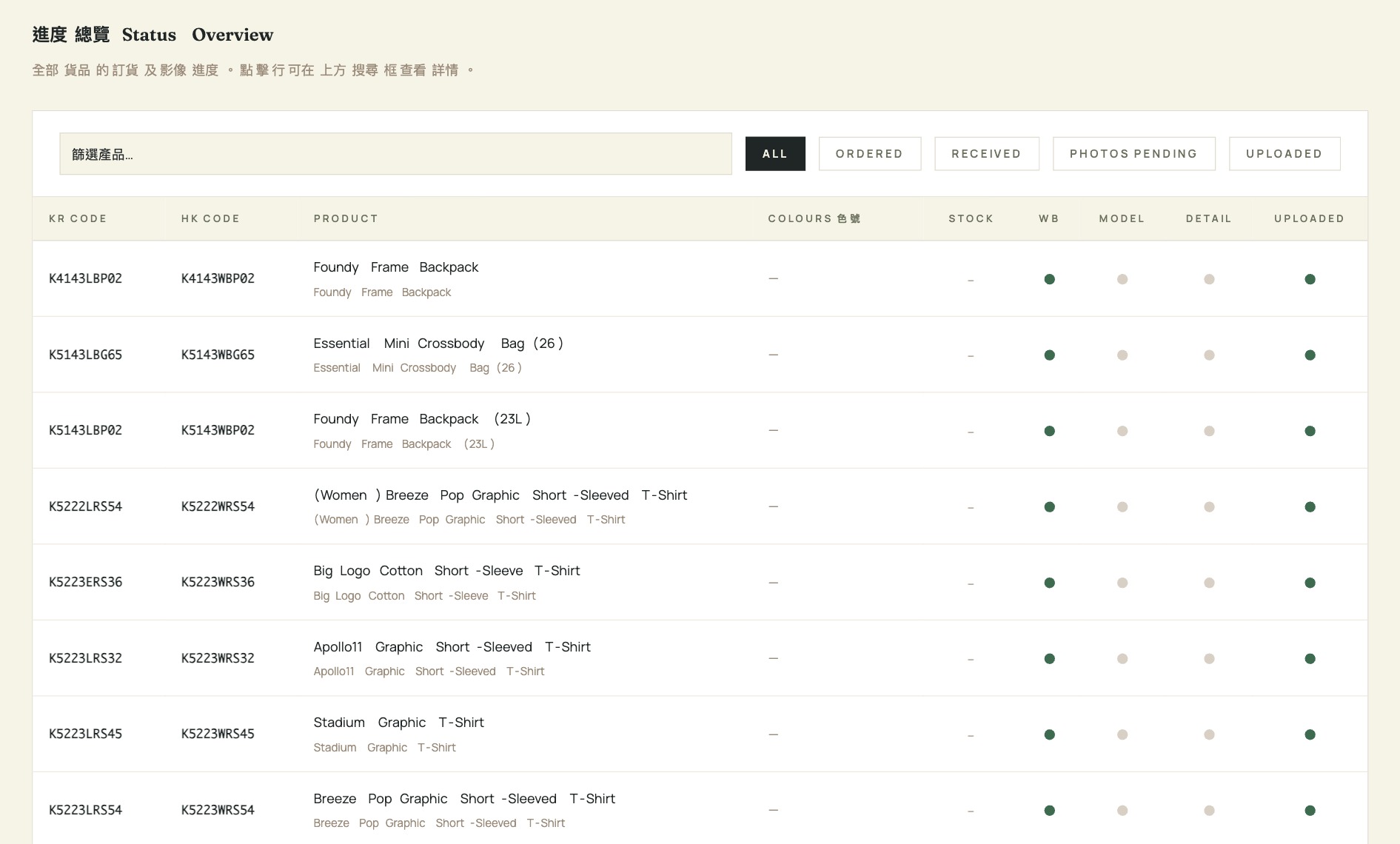
Understanding the pipeline states
Products always move forward through these four stages — they do not skip or go backwards:
Ordered → Received → Photos Pending → Photos Uploaded
If a product shows Ordered, it has not yet arrived at the warehouse. If it shows Received, stock is in but no shoot has been arranged. Photos Pending means someone is responsible for shooting — check with the photography team. Photos Uploaded means the asset is ready to use.
Snow Wash rather than the full campaign name. Codes are exact-match; names use a partial match.查詢產品與查看進度
開啟工具
- 在 NNI 主頁點擊 KD Assets,或直接前往 /tool/product_code_kd/。
- 頁面載入後包含四個部分:代碼查詢、進度總覽、下載代碼對照、檔名轉換。本課程使用前兩個部分。
搜尋產品
- 找到頁面頂部的 代碼查詢 Barcode Lookup 區域。
- 在搜尋框中輸入內容,可使用以下任一方式搜尋:
- 條碼 —— 例如
K6122LFV11 - 完整 SKU —— 例如
KD-K6122WFV11BLK - 產品名稱 —— 例如
Snow Wash Tee
- 條碼 —— 例如
- 結果會即時顯示 —— 無需按 Enter 。
- 點擊結果列可展開完整資料:條碼、 SKU 、產品名稱及目前的圖片狀態。
查看進度總覽表
進度總覽 Status Overview 區域顯示完整產品清單,以及每件產品在拍攝流程中的位置。
- 向下捲動至查詢區域下方的進度總覽表格。
- 如需查找特定項目,可使用表格上方的搜尋框,按名稱或代碼篩選。
- 使用篩選標籤按流程階段縮小範圍:
- All (全部) —— 顯示所有產品
- Ordered (已訂購) —— 產品已下訂,貨品未到
- Received (已收貨) —— 貨品在庫,拍攝尚未開始
- Photos Pending (待拍攝) —— 拍攝已安排或進行中,圖片未上傳
- Photos Uploaded (圖片已上傳) —— 圖片已完成並載入系統
- 點擊 Photos Pending 只顯示仍待拍攝的產品 —— 在向攝影師落單或跟進時特別有用。
了解流程階段
產品永遠按以下四個階段向前推進 —— 不會跳過或倒退:
Ordered (已訂購) → Received (已收貨) → Photos Pending (待拍攝) → Photos Uploaded (圖片已上傳)
若產品顯示 Ordered,表示貨品尚未到達倉庫。顯示 Received,表示已有存貨但拍攝未安排。 Photos Pending 表示有人負責拍攝 —— 請跟進攝影團隊。 Photos Uploaded 表示素材已可使用。
Snow Wash 而非完整的活動名稱。代碼為完全符合搜尋;名稱則支援部分符合。